macOS
First, go launch the Euphony app, it should be in your Applications folder. This ensures the extension shows up in Safari.
Next, open the Extensions pane in Safari's preferences and enable the Euphony extension by checking the box next to it.
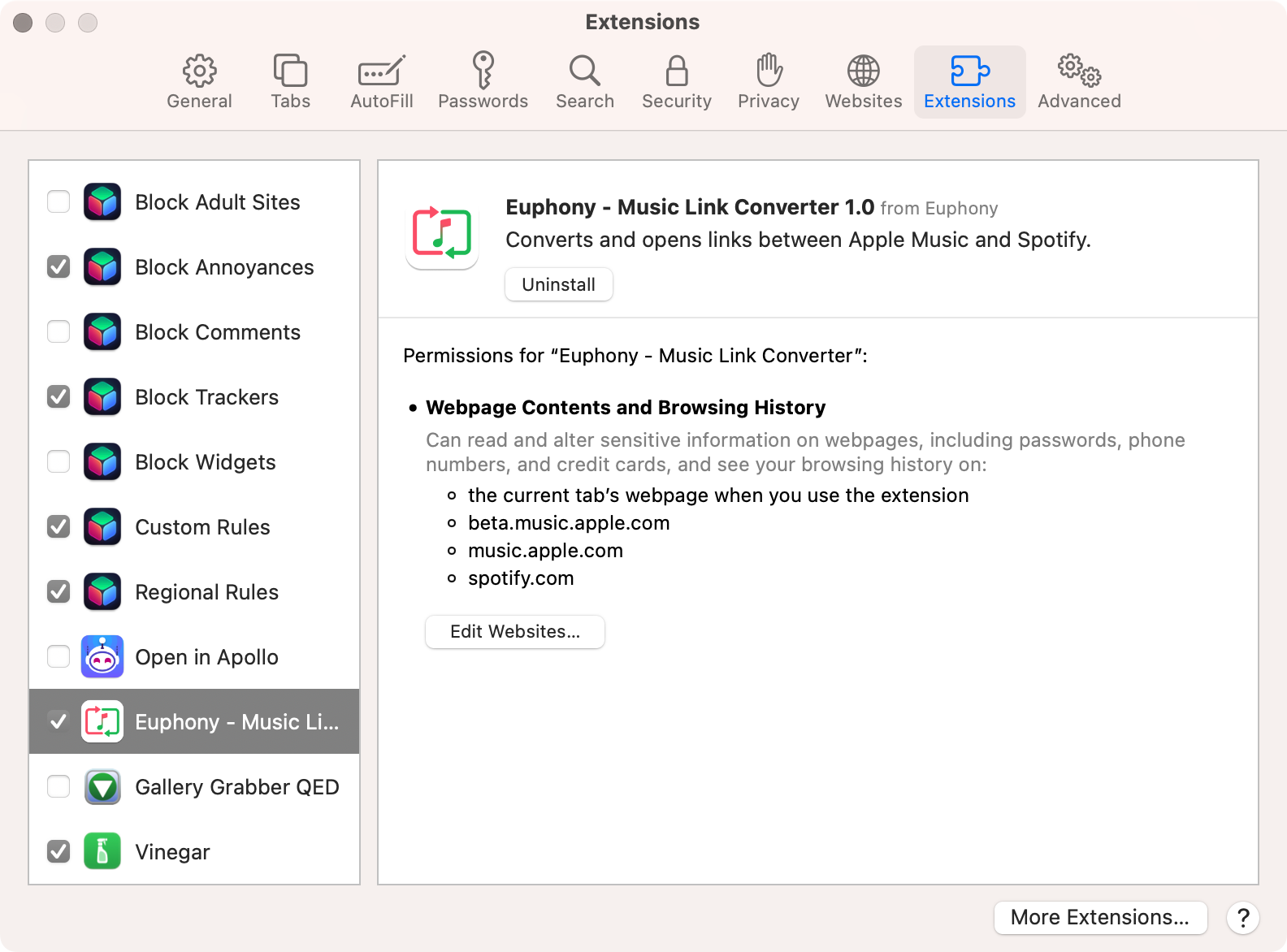
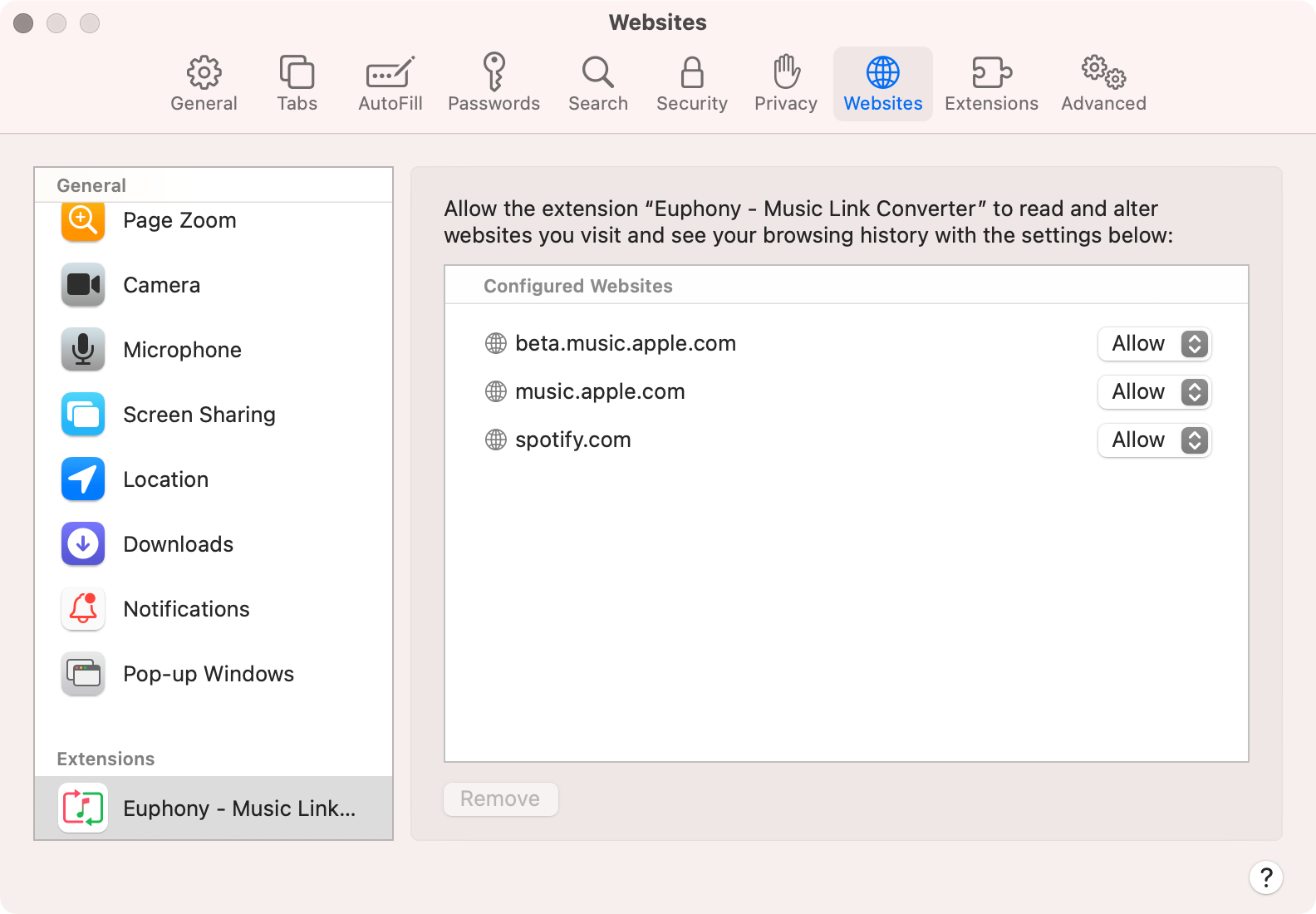
After enabling the extension, click the "Edit Websites…" button. Then change all of the options to "Allow" for each site. This lets Euphony do its thing without asking you every time to access the sites.
Finally, close the Preferences window and click the Euphony icon in the toolbar. Here you can set your preferences of what links should be converted. Fair warning, if you enable both you might end up in a small loop.

iOS
First, go launch the Euphony app, it should be on your home screen somewhere. This makes sure the extension shows up in Safari.
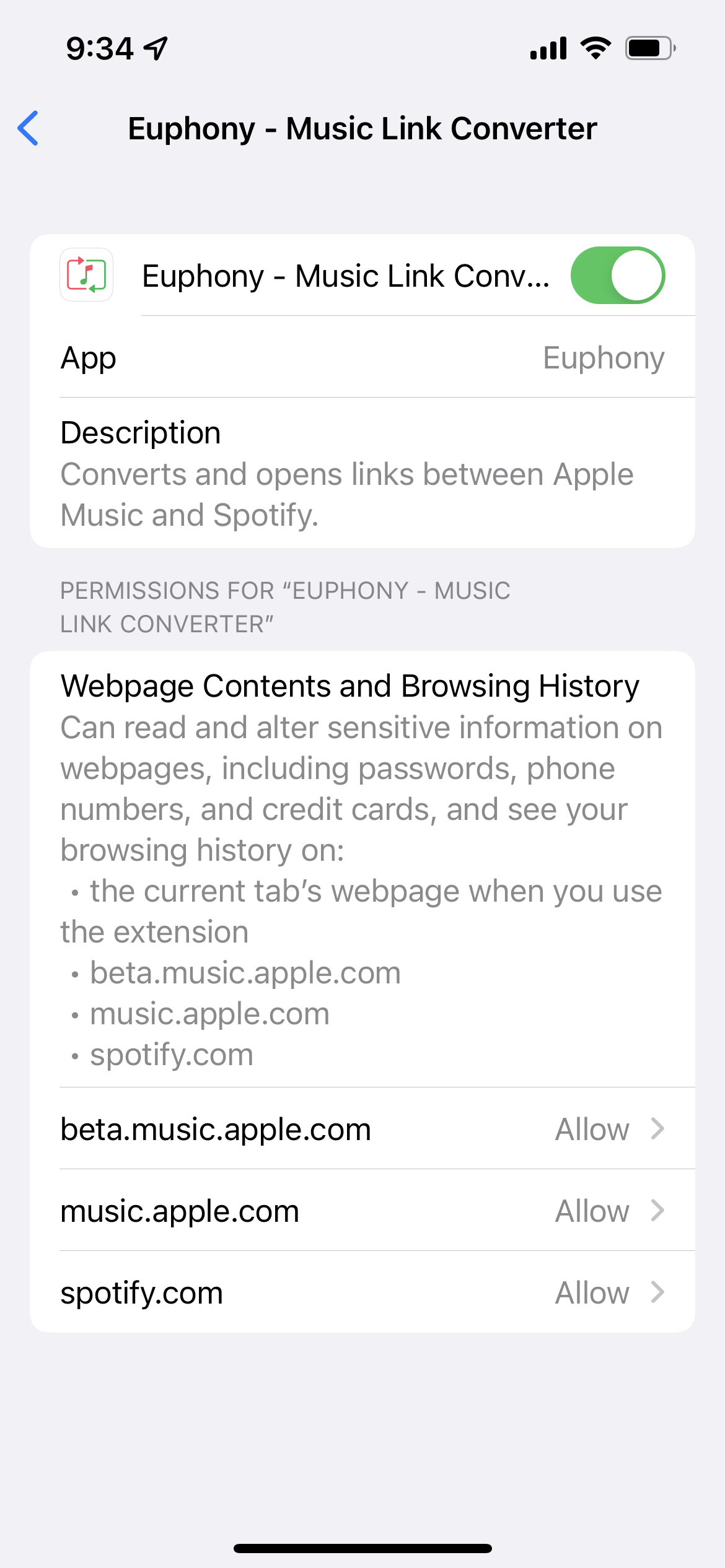
Next, open the Settings app and tap on the Safari settings. Find the Extensions settings and tap on it. Then tap on Euphony in the list of extensions and toggle it on. While you're there, change all of the permissions to "Allow" for each site. This lets Euphony do its thing without asking you every time to access the sites.
Finally, open Safari and load any site. Tap on the  button, then tap on Euphony to open the extension preferences. This will let you set if you'd like Euphony to automatically convert Spotify links.
